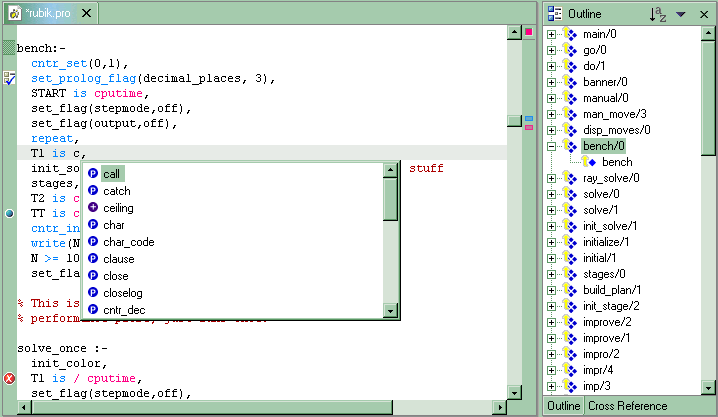
The Editor and Outliner are a matched pair of views in the IDE.
The screen shot above illustrates many of the editor's features:
Action Function [F1] Displays appropriate help topics [Ctrl]-Space Displays a list of matching keywords for any characters to the left of the cursor ( Displays a description and the parameters for the Amzi! system predicates to the left of the left parenthesis Double-Click in Left Margin Adds or clears a breakpoint Right-Click in Left Margin Allows the managing of breakpoints, task markers and bookmarks Right-Click in Editor Displays menu of common editing functions Put Mouse Cursor Over a Predicate Displays a description and the parameters for Amzi! system predicates File | Save Updates the outline and checks for syntax errors Edit Menu Provides standard editing functions for cutting, copying, pasting, finding and replacing text Navigate Menu Go to a line or the last edit Search Menu Search for text or patterns across multiple files or the entire workspace and highlights their locations in the right margin for each open file Window | Preferences | Prolog Set the preferences for colors Switch between having the editor to display the entire file or only the text highlighted by clicking on a predicate in the outliner
Text files are saved the default format for your operating system and locale. For example,Windows users in North America, the default is ANSI Codepage 1252 which is a 255 character set. Amzi! Prolog can process source code files in 8-bit (ASCII or multi-byte) or 16-bit Unicode format.
To change the format of a file select Edit | Encoding. For example, to look at the source files in the Prolog Babel sample, you will need to select Edit | Encoding | Unicode after opening one of them.
The outline (see above) is created when a Prolog source file is opened or saved. By default the predicates are shown in the order they appear in the file. To sort them in alphabetical order:
 button
If there are any syntax errors in the source file, they will be displayed in the Tasks View (by default at the lower right). Errors may cause the outliner to omit the predicate where the error occurs.
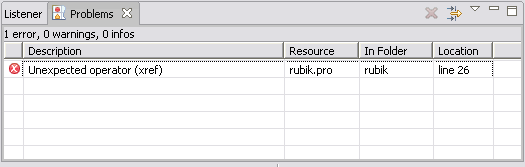
Clicking on the Error in the Tasks View will jump to the location in the associate source file.
To control the colors, tab size and other editor options select Window | Preferences then click on Prolog.
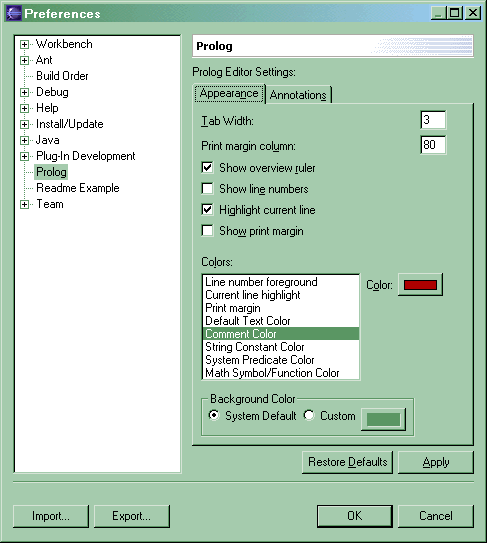
The Prolog Editor preferences are:
Tab Width How many spaces wide a tab is Print Margin Column The width of the paper for your printer Show Overview Ruler Controls display of the right margin area that provides quick links for error, to-do, bookmark and search markers Show Line Numbers Displays line numbers to the left of each line Highlight Current Line Highlights the entire line where the cursor is located Show Print Margin Displays a line at the print margin column Colors Controls the colors of the text and highlights Background Color Sets the background color for the editor
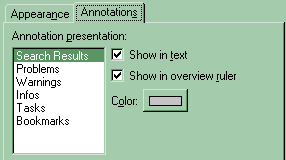
If you have the Overview Ruler enabled, the Annotations Tab of the preferences let's you control which items are displayed in the ruler and the color of each one.
